
How to Run a Hybrid Conference: A Practical Planning Guide
A practical guide to running a hybrid conference, covering ticketing, streaming setup, event-day monitoring, replays, and keeping remote attendees engaged.
October 13, 2026
A hybrid conference lets people attend in person or watch remotely, without running two separate events. The hard part isn't deciding to add a virtual option, it's building the ticketing, access control, and event-day workflow so both audiences get a good experience without doubling your team's workload. This guide covers what that actually requires: how to structure tickets, choose a streaming setup, monitor sessions on show day, and communicate with remote attendees without adding manual work.
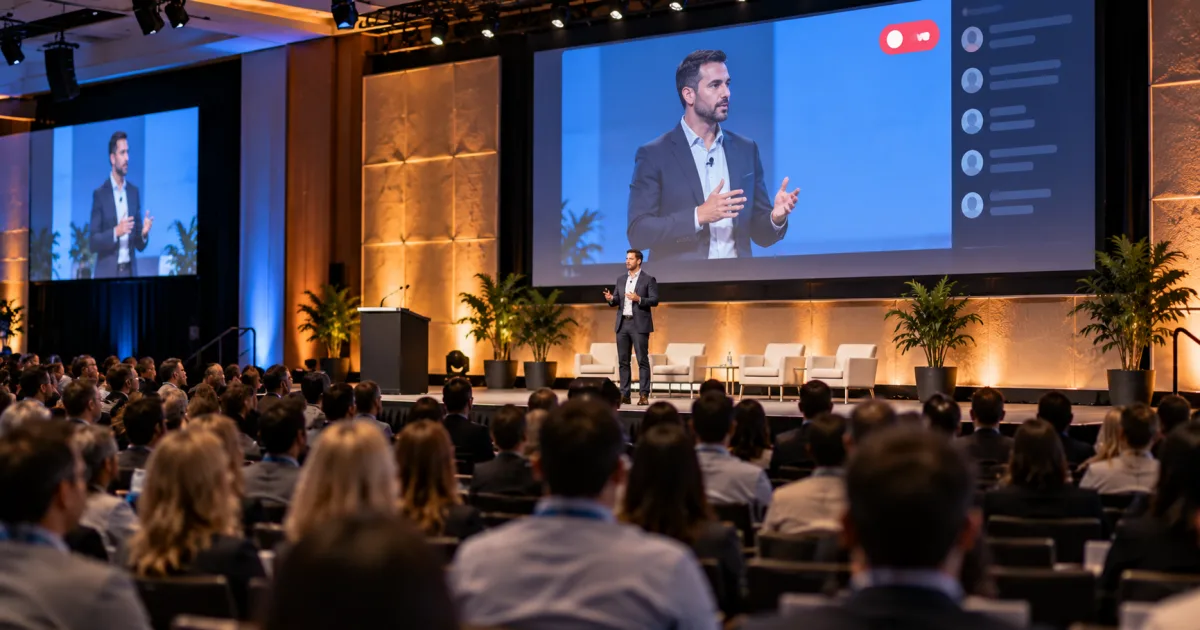
What "Hybrid" Actually Means
The term gets used loosely, so it's worth being precise before you plan around it.
- In-person only: no virtual component. Attendees have to be in the room.
- Virtual only: no physical venue, or the physical venue is incidental. Everyone attends through a screen.
- Hybrid: a real, physical event that also streams some or all of its content to people who aren't there. The in-person event is the primary event; the virtual audience is an extension of it, not a separate production.
- Simulcast: a narrower version of hybrid where a session is literally streamed live with no separate virtual programming, chat, or engagement layer built around it.
Most conferences that say they're "going hybrid" actually mean simulcast: stream the keynote and a few flagship sessions, let remote attendees watch, and don't try to replicate the full in-person experience online. That's a reasonable scope, and it's the version this guide focuses on. Trying to build a full parallel virtual event, with its own networking, expo floor, and engagement tracks, is a much bigger production and usually a different tool decision entirely.
This distinction matters because it changes what "success" looks like. A simulcast-style hybrid event succeeds if remote attendees can reliably watch the sessions they care about and the in-person event isn't disrupted by the added complexity. It is not trying to give a remote attendee an experience equivalent to being in the room, and setting that expectation early, both internally with your team and externally with attendees, avoids a lot of disappointment on both sides.
Start With Ticketing, Not Streaming
The most common mistake in hybrid planning is treating it as a video problem first. It's a ticketing problem first.
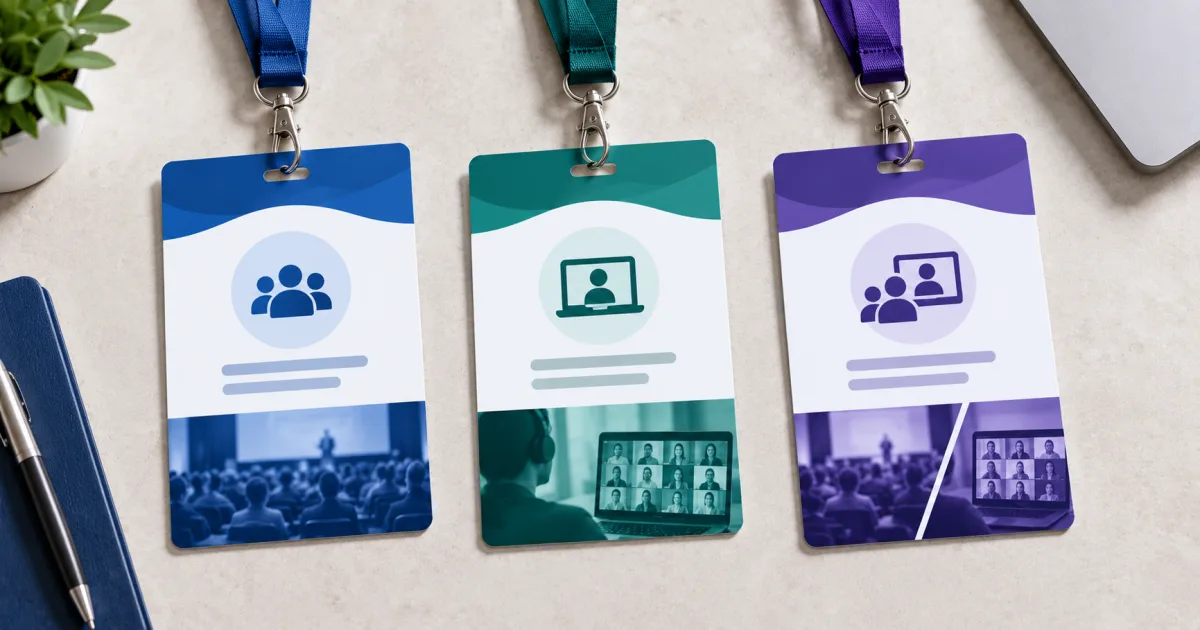
Before anyone thinks about which platform to stream from, decide how access will be sold and tracked:
- Will you sell a separate virtual ticket, at a different price than in-person?
- Will some ticket types include both in-person and virtual access (a true hybrid ticket)?
- Will virtual access be free, or bundled into every ticket by default?
Whatever you decide, that access level needs to be tied to the ticket itself, not tracked separately in a spreadsheet. If your registration platform can't express "this ticket type includes virtual access, this one doesn't," you'll end up reconciling two lists by hand, which is exactly the kind of manual work that causes people to lose access they paid for, or keep access after a refund.
The practical model that works well: three access levels, in-person only, virtual only, and hybrid (both). Every ticket type gets assigned one, and everything downstream, badges, check-in, stream access, follows from that single setting.
Consider a mid-size association conference selling three ticket types: a $650 in-person pass, a $150 virtual pass, and a $700 hybrid pass for members who want the option to do either depending on their travel schedule. Each ticket type maps to exactly one access level. A virtual-pass holder never shows up in the check-in queue or the badge print run, because they were never going to be on-site. A hybrid-pass holder shows up in both check-in and the stream access list, because they might use either. None of that requires a separate spreadsheet if the access level lives on the ticket itself.
Pricing a Virtual or Hybrid Ticket
There's no universal formula, but a few patterns show up consistently across events that have run hybrid more than once:
- Virtual-only tickets commonly price between 20% and 40% of the in-person rate, reflecting the absence of meals, materials, and networking access, while still covering the content value
- Hybrid (both) tickets are usually priced close to the in-person rate, sometimes with a modest premium, since the attendee is paying for full flexibility
- Free virtual access, bundled into every ticket by default, works for organizations prioritizing reach over registration revenue, association annual meetings and members-only conferences are common examples
Whatever you choose, decide it before you build your registration flow, not after tickets are already on sale. Changing access levels retroactively on tickets people already purchased creates exactly the kind of manual cleanup this section is trying to help you avoid.
Decide Which Sessions Get Streamed
Not every session needs a camera. Deciding what to stream is a content and operations decision, not just a technical one.
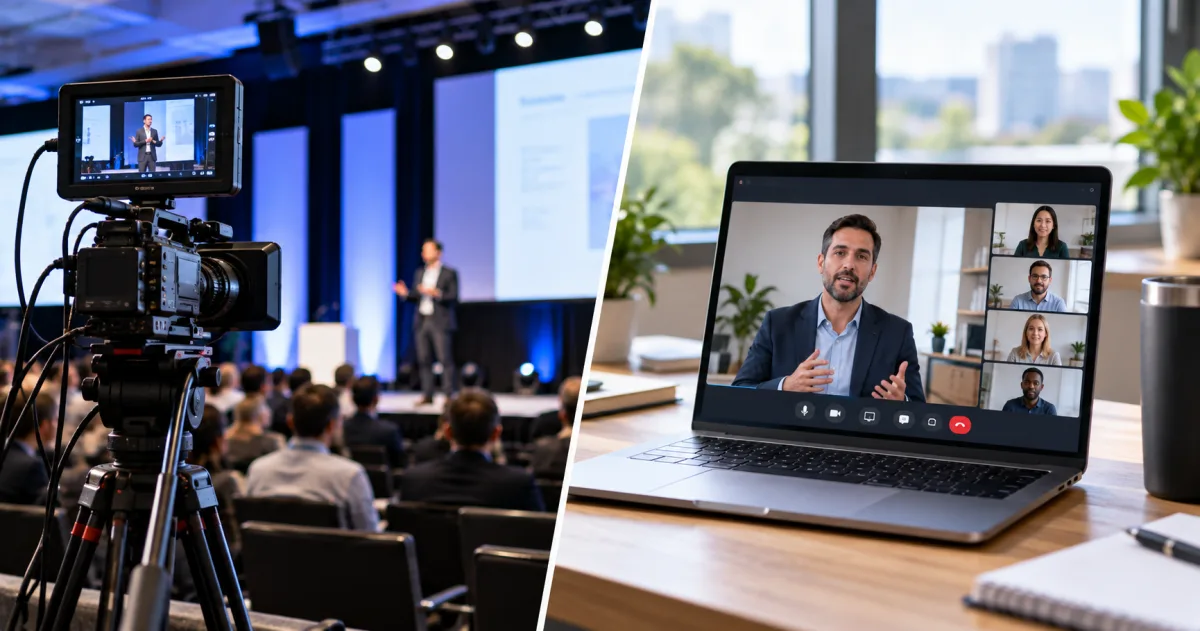
Good candidates for streaming:
- Keynotes and general sessions, where the content is broadly relevant and the room is set up for a stage/podium format anyway
- Panel discussions, which translate reasonably well to video
- Flagship breakouts with unusually high demand or a well-known speaker
Weaker candidates:
- Small, discussion-heavy breakouts where the value is in the room dynamic
- Hands-on workshops that require physical materials or movement
- Anything happening in a space without reliable power, network, or line of sight for a camera
Mark each session's delivery mode explicitly, in-person only, streamed, or virtual-only if it has no physical room at all, rather than deciding session-by-session on the day. That decision affects room setup, AV needs, and what you tell speakers to expect, so it needs to be locked in during agenda planning, not the week of the event.
It's also worth telling speakers directly whether their session is being streamed, well before the event. A speaker who doesn't know they're on camera behaves differently than one who does, and a speaker who assumed they'd be streamed but weren't may feel their session was treated as less important. Either way, that's a conversation to have during speaker confirmation, not a surprise on the agenda they see for the first time onsite.
Choosing a Streaming Setup: Embed vs. Meeting Link
There are two practical ways to get a session in front of a remote audience, and the right choice depends on the session, not a platform-wide default.
Embedded video (YouTube, Vimeo, or Wistia): you push video to the platform, and remote attendees watch it inline on your event site or app, without leaving to join anything. This is the better option for one-directional content, keynotes, panels, anything where the remote audience is watching rather than participating.
A join link (Zoom, Microsoft Teams, or similar): remote attendees click a link and enter the meeting directly. This makes sense when the session genuinely needs two-way interaction, live Q&A with unmuted audience members, a workshop where remote participants need to share their screen, or breakout-room-style discussion.
Whichever you use, don't just paste a raw link into an email and call it done. At minimum:
- Gate the link or embed behind the attendee's actual registration, not "anyone with the link"
- Include an access code if the platform supports one, and show it only to people who are entitled to see it
- Add a one-line instruction for anything non-obvious ("use the email you registered with when Zoom prompts for your name")
It's also worth having a backup source for anything you consider a flagship session. A single point of failure, one YouTube stream, one Zoom room, is fine for a low-stakes breakout. For your opening keynote, a second source you can switch to in a few clicks is the difference between a two-minute hiccup and twenty minutes of dead air while your team scrambles to fix the primary feed live.
Access Control: Who Can Actually Watch
This is the part that gets skipped most often, and it's the part that causes the most support tickets.
A meeting link shared over email has no concept of who's allowed to use it. Anyone who receives it, or has it forwarded to them, can join. That's a real problem for paid content, and it means you have no clean way to cut someone off if their registration is cancelled or refunded.
The fix isn't complicated in principle: check entitlement every time someone tries to access the stream, not just once at registration. In practice that means:
- Re-verifying the attendee's ticket and order status on every request, not caching a yes/no decision from checkout
- Revoking access immediately when an order is refunded or cancelled, not at the next batch sync
- Treating the stream link and any access code as something shown only to entitled attendees, never included in a public agenda page or a mass email that goes to your full list
If your platform can't do this automatically, it usually means someone on your team has to manually track who's been refunded and manually remove them from a mailing list or meeting roster, which does not scale past a handful of registrants.
Download the free 12-Month Conference Planning Checklist
9 planning phases, 70+ action items — from venue selection through post-event closeout. Formatted as a PDF your team can check off together.
Free. No spam. We'll follow up only if you want a demo.
Test the Stream Before Doors Open
A rehearsal isn't optional for a flagship session, it's where you find the problems that are cheap to fix a week out and expensive to fix live in front of a remote audience.
Run a real end-to-end test, not just a camera check:
- Confirm the access flow works for a real ticket. Create a test registration with virtual access, then actually try to watch through it, using the same link or sign-in flow an attendee will use. A stream that works fine when someone on your team is already logged into the admin dashboard can still be broken for the person clicking a link from their inbox.
- Test from the actual room, not a laptop at someone's desk. Venue WiFi and venue power are different from office WiFi and office power. A stream that looks fine from the marketing team's desk the week before can behave differently once it's competing for bandwidth with a few hundred attendees' phones in the same room.
- Rehearse the failure, not just the happy path. Have someone deliberately kill the primary stream source and confirm the team watching the dashboard actually notices, and that switching to a backup source takes the few clicks it's supposed to, not a scramble to find the right settings menu under pressure.
- Check what a late-arriving speaker's slides look like on stream, not just on the room's projector. Screen-share resolution and stage-camera framing don't always translate the way presenters expect, and a slide deck built for a 16:9 projector can crop badly in a laptop camera's frame.
Do this at least two or three days before the event, not the morning of, so there's time to actually fix whatever the test turns up. A rehearsal the morning of the event finds the same problems a week-out rehearsal would, just with no time left to solve them.
Communicating With Remote Attendees Before the Event
In-person attendees get reminded constantly, a confirmation email, a reminder a week out, signage at the venue, other attendees talking about it. Remote attendees get none of that ambient reinforcement, so the burden falls entirely on your email communication.
At minimum, plan for two touchpoints:
- At registration: confirm what their ticket includes and set the expectation that a separate "how to watch" email is coming closer to the event, so they're not left wondering.
- The day before the event: send a dedicated email with exactly what they need, a direct sign-in link if your platform supports one, or clear instructions for where to find the stream, and roughly when it opens relative to the session start time.
Resist the urge to bury this information in a longer newsletter-style update. A remote attendee who has to hunt through a long email for the one link they need is more likely to give up and simply not show up. If you can automate this second email based on ticket access level, do it. A manual reminder that depends on someone remembering to send it the week of the event is one of the more common reasons virtual attendance falls short of registration numbers.
Running the Event: What Changes on Show Day
Once the event starts, virtual sessions need active monitoring the same way an in-person room needs a staff member checking on it.
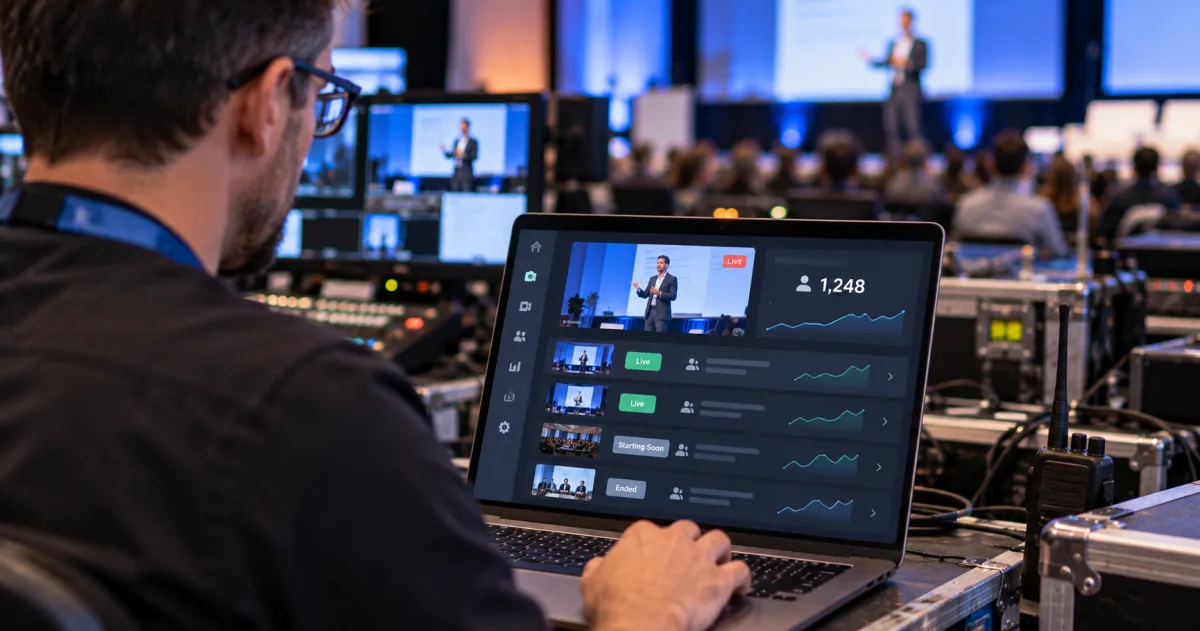
Have a plan for:
- Status changes: if a stream is delayed or having technical issues, remote attendees need to see that immediately, not figure it out from a frozen video feed
- Backup sources: if your primary stream fails, you need a way to switch to a backup without re-sending links to everyone watching
- Real-time visibility: knowing how many people are currently watching a session, in the moment, not after the event, helps you catch a dead stream fast and gives your team a read on which content is landing
This is the part of hybrid execution that's easiest to underestimate. A single link shared by email has no dashboard, so a broken stream might go unnoticed for twenty minutes while attendees quietly give up and close the tab. Whoever owns virtual operations on event day needs a live view of every streamed session's status, not just a hope that the original link still works.
Assign this explicitly to one person or a small team, separate from whoever is running in-person operations. It's tempting to treat virtual monitoring as something the in-person ops team can glance at between other responsibilities, but a stream failure needs to be caught and fixed within a couple of minutes to avoid losing the audience, and that requires someone whose actual job in that moment is watching the streams, not someone checking in on it occasionally between badge printer jams.
Also plan for the mundane version of this problem: sessions that run long or start late. If your in-person schedule slips by fifteen minutes, your virtual attendees are staring at a "starting soon" screen with no explanation. A short status update, even something as simple as posting "running about 15 minutes behind" to the stream page, does more for the remote experience than most teams expect.
Replays and Extending the Life of Your Content
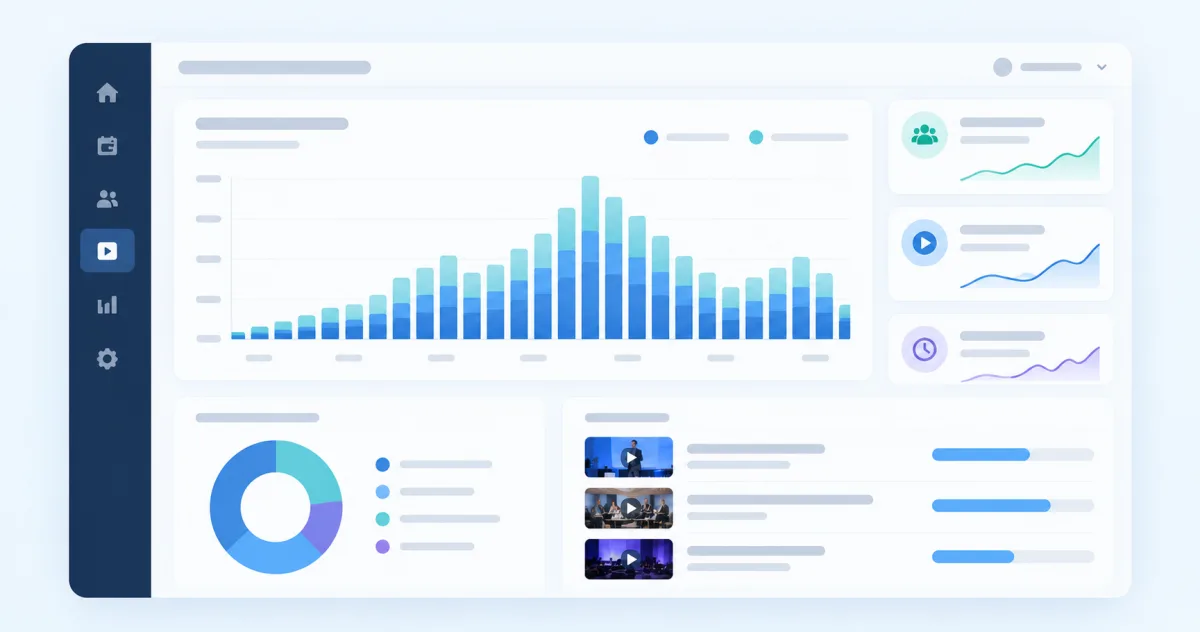
A hybrid event doesn't have to end when the last session does. Recording sessions and making them available afterward extends the value of the content you already produced, for registrants who couldn't attend a specific time slot and for people evaluating whether to attend next year.
A few decisions worth making ahead of time rather than after the fact:
- Will replays be available to everyone who registered, or only virtual/hybrid ticket holders?
- How long will the replay stay up, indefinitely, or for a limited window?
- Will you record every streamed session, or only the ones you're confident are worth archiving?
Set the replay window deliberately. If a recording becomes available before the live session has even happened, or before you intend it to, attendees can end up watching an old replay instead of waiting for the live event, which is a confusing experience to debug after the fact.
Measuring What Actually Worked
Registration counts tell you how many virtual tickets you sold. They don't tell you how many people actually showed up, or how much of a session they watched.
For a meaningful post-event picture, track:
- Access, not just registration: who actually opened the stream
- Watch time, where the platform can measure it: someone who watched two minutes of a sixty-minute keynote had a very different experience than someone who watched the whole thing
- Live versus replay: how many people watched live compared to catching up afterward, which tells you whether your scheduling actually worked for your virtual audience's timezone and availability
This data matters for the same reasons in-person attendance data matters: it tells sponsors what they actually paid for, tells you which sessions justify a repeat next year, and gives your team a real read on hybrid ROI instead of a guess.
It also changes how you plan next year's agenda. If a session had a high registration count but low actual watch time, that's a signal the topic sounded appealing on paper but didn't hold the audience, worth investigating before you schedule something similar again. If a session had a small live audience but a large replay audience, that might mean your timezone assumptions were wrong rather than the content being weak. Neither of those insights is visible from registration numbers alone.
For sponsors specifically, the difference between "1,200 people registered for the virtual track" and "1,200 people registered, 740 actually logged in, and the average watch time was 38 minutes" is the difference between a vague promise and a number a sponsor can actually evaluate against what they paid for exposure.
Common Mistakes When Adding a Virtual Option
A few patterns show up repeatedly in events adding hybrid for the first time:
- Treating the virtual link as an afterthought communication. A one-line mention buried in a longer email gets missed. Virtual attendees need a clear, dedicated message telling them how to watch, sent close enough to the event that they'll actually see it.
- No plan for access revocation. If a refund doesn't automatically cut off stream access, someone has to remember to do it manually, and it usually doesn't happen.
- Streaming everything by default. Not every session benefits from a camera, and treating delivery mode as an event-wide setting instead of a per-session decision creates awkward streams of sessions that were never designed to be watched remotely.
- No day-of monitoring. A stream that goes down silently costs you attendees who won't come back to check again later.
- No post-event data beyond registration counts. Without access or watch-time data, you can't tell your team, your sponsors, or yourself whether the virtual side of the event was actually worth running again.
- Assuming the in-person team can absorb virtual operations as a side task. Monitoring streams, watching for access issues, and fielding remote-attendee questions is real, ongoing work during the event. Without someone explicitly responsible for it, it quietly falls to whoever happens to notice a problem first, usually too late to fix it quickly.
Running Hybrid Events with VenueSight
VenueSight builds virtual and hybrid support directly into the same platform used for registration, badges, and check-in, so the workflow above doesn't require a second system.
Ticket types carry an access setting of in-person, virtual, or hybrid, so a single event can sell both an in-person pass and a separate virtual pass, or one hybrid ticket that covers both. Each session gets its own delivery mode (in-person, streamed, or virtual-only) and a stream source, either an embedded YouTube, Vimeo, or Wistia player, or a join link for something like Zoom or Microsoft Teams, complete with an access code and instructions shown only to entitled attendees.
Access is checked against the attendee's ticket and order status on every request, so a refund or cancellation revokes stream access immediately, without anyone having to remember to do it. A day-of streaming dashboard gives organizers a live view of every streamed session: current status, viewer counts, and a one-click way to switch to a backup source if the primary one fails. Replays open automatically on a window the organizer sets, and a full attendance export covers who accessed each session, when, live or replay, and how long they watched.
Virtual and hybrid registrants also get a short note in their order confirmation email and an automatic sign-in link the day before the event, so there's no manual reminder email to write or send.
See how it fits your event on the virtual and hybrid event software page, or connect it to the rest of your event operation, starting with event registration, on-site check-in, and session management.
Frequently Asked Questions
-
A virtual event has no physical venue, or the venue is incidental, and everyone attends through a screen. A hybrid event is a real, physical event that also streams some or all of its content to people who aren't there in person.
-
Not necessarily. Many hybrid events stream successfully using an embedded video platform like YouTube or Vimeo for one-directional content, or a standard video conferencing link for interactive sessions, without dedicated broadcast equipment.
-
Access should be checked against the attendee's ticket and order status every time they try to watch, not just once at registration, so that a refund or cancellation removes access immediately rather than relying on a manual process.
-
No. Keynotes, panels, and flagship sessions typically translate well to a remote audience, while small discussion-based breakouts or hands-on workshops often don't. Delivery mode is usually a better fit as a per-session decision than an event-wide default.
-
VenueSight does. Ticket types carry an access setting of in-person, virtual, or hybrid, each session gets its own delivery mode and stream source, and access is re-checked against the attendee's order status on every request, so a refund revokes stream access immediately. A day-of dashboard shows every streamed session's status and viewer count, with a one-click switch to a backup source if the primary feed fails.